Previous page

Next page

Process Leave Requests

You are in Transaction View and Brent Greens’s leave requests are displayed in the Drill Down area.

  1. Click the Tag checkbox for the leave requests that you want to process with Module = "P".

    In this example, Brent's leave request for this period and the previous period will be processed (not the split leave request for the future period).

    You cannot tag the following leave requests

    • Leave requests with Module = F or T.
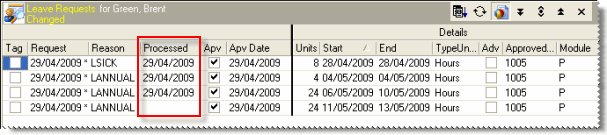
    • Processed leave requests, which have a date in the Processed column. If you needed to reload and reprocess a leave request, then you would double-click the leave request in Transaction View to open it, and then delete the Processed date.
  2. Press F8.

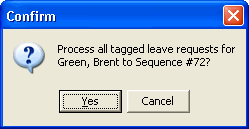
    A Confirm box appears.

    Embedded GIF File 0% Template

  3. Press Enter or click Yes.

    Brent’s leave requests now have a Processed date.
    Embedded GIF File 0% Template

  4. Press Ctrl+1 to change to Sequences View.

    PayGlobal copied Brent’s annual leave and sick leave transactions into the pay sequence (using the allowances that are attached to the leave reasons) and you can now process them as normal transactions.

    Embedded GIF File 0% Template

  5. Press Ctrl+S to save your changes.

Previous page

Next page

Topic: 8499