

|
|
|
|
|
|
You are on the main PayGlobal window.
The Pay Sequences window opens.
The Transaction View window appears.
 .
.The Drill Down area now displays Brent Green’s leave requests.
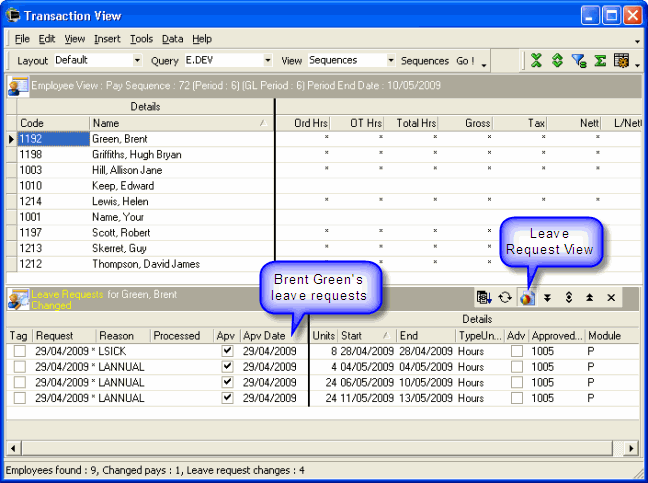
Brent has applied for the following leave:
The pay period end date for this pay is 10/05/2009.
Sick Leave
The sick leave request Start date belongs to a past pay period, so Brent will be paid for the leave in this pay period.
Annual Leave (4 hours)
The partial day of annual leave belongs to a this pay period, so Brent will be paid for the leave in this pay period.
Annual Leave
ESS split Brent’s annual leave request into two entries.
- or -
The module that the request is assigned to depends on the Future roster module setting.
Leave Request |
Start date |
End date |
Module |
|---|---|---|---|
Leave Request 1 |
28/04/2009 |
28/04/2009 |
P |
Leave Request 2 |
04/05/2009 |
04/05/2009 |
P |
Leave Request 3 |
|
|
|
1st entry |
06/05/2009 |
10/05/2009 |
P |
2nd entry |
11/05/2009 |
13/05/2009 |
P (or F) |
You can process and pay the leave requests with Module = P.
|
|
|
 |
Topic: 8546


