Use the following procedure to view and process leave requests for all employees.
- In ESS, use Leave Request Search (via General Admin role) to action any unapproved leave requests for the period.
- In PayGlobal, open Transaction View and select the pay sequence that leave requests will be processed in.
- In the Drill Down area tool bar, click the Leave Request View icon
 .
. - Click the Drill Down header to make it the active section.
- In the main menu, click View | Drill Down View | Load All Employees.
A record for each employee appears in the Drill Down.
You should apply custom filters to ensure that you process only the leave requests for the current pay.
- Click the Filters button
 . Arrows appear beside each column heading in the drill down section.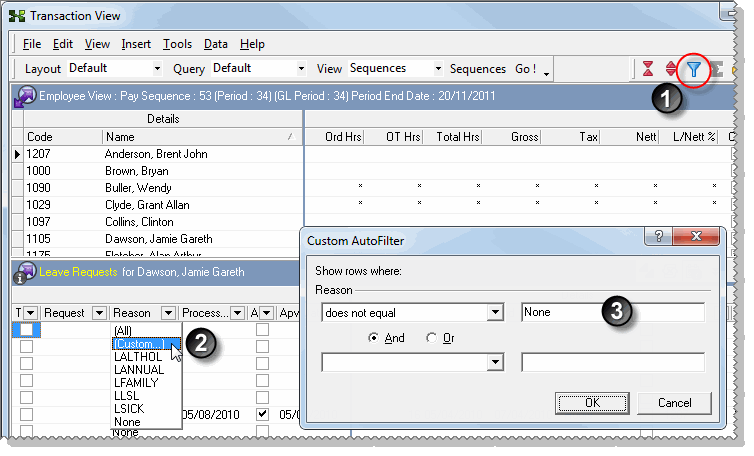
- To hide all employees with Reason = None, click the arrow beside the Reason column header and select [Custom...]
 .
. - Complete the Custom AutoFilter as shown
 .
. - To hide requests that have already been processed, click the arrow beside the Processed column header and select [Blanks].
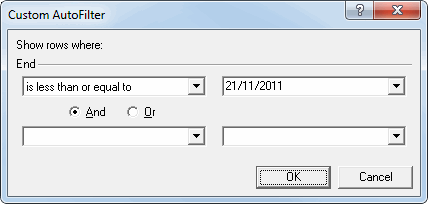
- To show only requests that have an End date that is less than or equal to the end date of the period you are using, click the arrow beside the End column header and select [Custom...]
- Complete the Custom AutoFilter. Select the end date of the pay sequence you are using. PeriodEndDate is shown to the left of the number 1 in the image above).
The next part of the process explains how to add the Name column so you can see who the requests belong to.
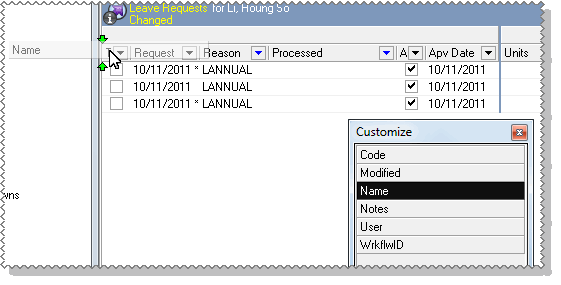
- Ensure that Drill Down is still the active section and press F10 to open the Customize list.
- Click the Name button and drag it to the line of column headers.
Two green arrows highlight where the column will be inserted when the mouse button is released. Generally the employee name is one of the first columns, so when the arrows show that it is correctly positioned, release the mouse button.
- Close the Customize list.
- Click the Tag checkboxes for all leave requests that you will process in this pay.

- Press F8.
A Confirm box appears.
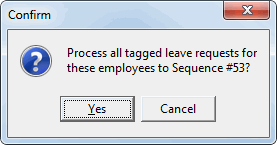
- Press Enter or click Yes.
The leave requests now have a Processed date so they are hidden by the Custom AutoFilter. The employees leave transactions were copied into the pay sequence, so you can process them as normal transactions.




