

|
|
|
|
|
|
Breaks may be handled many ways in ESS (depending on how they have been configured).
This topic explains four setups and how breaks are completed for each setup.
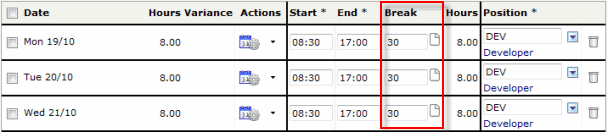
Break field is visible
If the Break field is visible, then you can simply enter the length of your break (in minutes) in this field.
Break field is not visible
If the Break field is not visible, then breaks are entered by adding a timeband for each period that you worked and then gaps are left between the timebands where you took your breaks. ESS may already have inserted the breaks for you.
In the following example, ESS has split the timeband for each day and left a 30 minute gap (8:00 to 8:30) for the employee's break.
If you are using this setup, then adjust the timebands so that the gap between them accurately reflects your break.
If the timeband is not automatically split, then use the following procedure to manually insert a break.
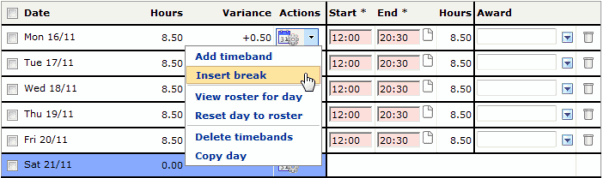
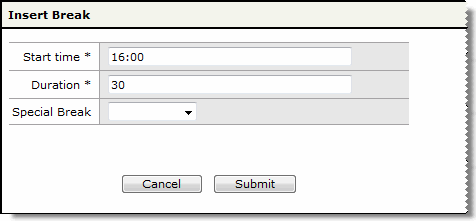
A popup appears.
The timeband is split and a gap is then left between the timebands equivalent to the duration that you entered.

Special breaks
Special breaks are breaks that require additional information and may be a paid break.
If you can use special breaks, then you see the applicable lookup field. The image below shows an example of a special break.
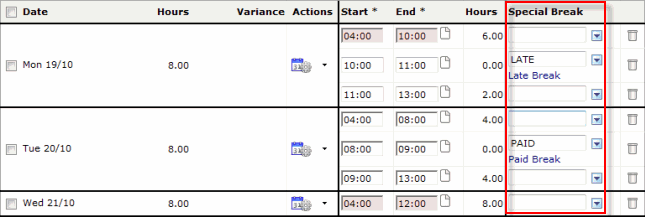
You must add a timeband for each span of time you have worked and a separate timeband for the special break.
To add a timeband, click Add timeband in the action drop down.
Note: If the special break is entered on a row that includes a timeband, then it will apply the special break rules to the hours in the timeband, so you may be paid incorrectly.
To add a special break you can:
|
|
|
 |
Topic: 27612


