|
|
|
|
|
|
Use the action drop-down  in the Actions column to perform an action for the day that you are accessing the drop-down from.
To perform an action for multiple days:
1. Click the checkbox (beside the date) for the required days. Alternatively, click the checkbox in the header row to select all days. The action drop-down appears.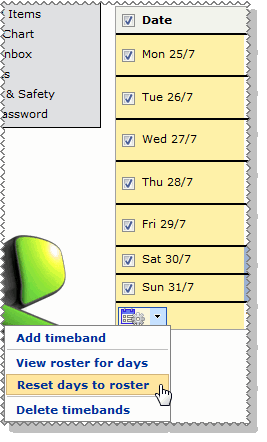
2. Click the required action in the drop-down.
Note: The options in the drop-down are visible only when you can use them.
The action drop-downs have the following options:
Single day action |
Multiple day action |
Add timeband |
Add timeband |
Adds a blank timeband row. |
|
Insert break |
Insert break is not available in the action lookup for multiple days. |
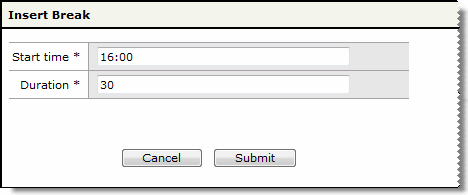
Visible when Use break amounts = "No" on the Timesheet Settings record in PayGlobal. Opens the Insert Break popup, which allows the employee to enter their break details and then splits the timeband to leave a gap for the break.
|
|
View roster for day |
View roster for days |
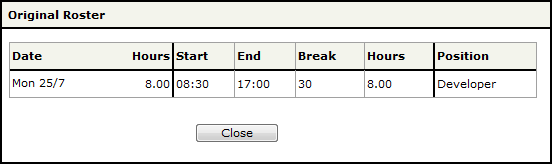
Displays your roster (from PayGlobal) for the selected day in a popup.
|
|
Reset day to roster |
Reset days to roster |
After you change or clear your timesheet for a day, you can reset it back to your roster. If you have added extra timebands, then these will be removed. |
|
Delete timebands |
Delete timebands |
Visible when a timeband exists. All details for the day are cleared and will look the same as a day that you are not rostered to work. |
|
Copy day |
Copy day is not available in the action drop-down for multiple days. |
Visible when a timeband exists. Copies all details in the source day to the clipboard ready to paste to another day. |
|
Paste to day |
Paste to days |
Visible after you have used the Copy day action. Pastes all details from the source day to the destination day(s). If the destination day is already populated, then these details are overwritten. |
|
|
|
|
 |
Topic: 27755