|
|
|
|
|
|
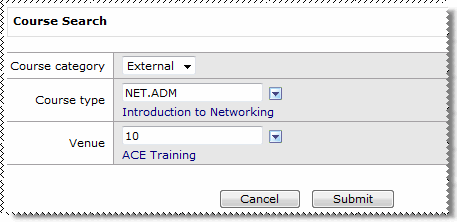
Use the Course Search page to search for available courses based on course criteria. When you find a course that you would like to attend, you can request to go on that course. Your manager must approve your course booking or they can book you on the course.
You can search for a course using one criterion, or enter several criteria to refine the results.
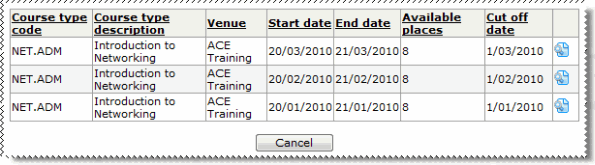
ESS displays all available courses that meet the selected criteria.
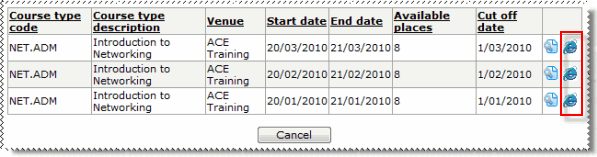
If an Explorer icon
|
 to open the Course Details page for the corresponding course.
|
|
|
 |
Topic: 28162


 appears beside the course, then the course is a web browser based e-Learning course. Click the icon to go to the corresponding website.