Create or Edit a Development Plan on Behalf of an Employee
You can create or edit a Development plan on behalf of your employees using the same procedure that an employee uses (see Employee - Development Plan).
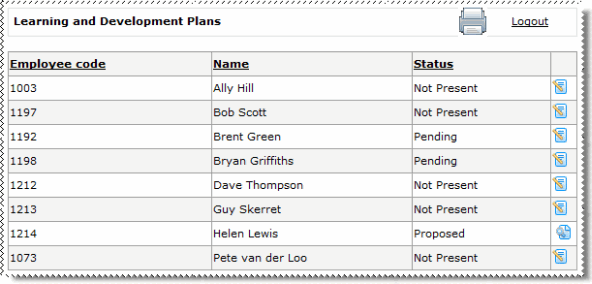
- Click the Edit icon
 beside the relevant employee.
 - If the Status beside the employee's name is "Not Present", then the employee does not have a current Development plan. When you click the Edit icon, you must enter dates for the employee's plan and click Submit. The page below appears.
- If the Status beside the employee's name is "Pending", then the employee has a current Development plan. When you click the Edit icon, the page below appears.
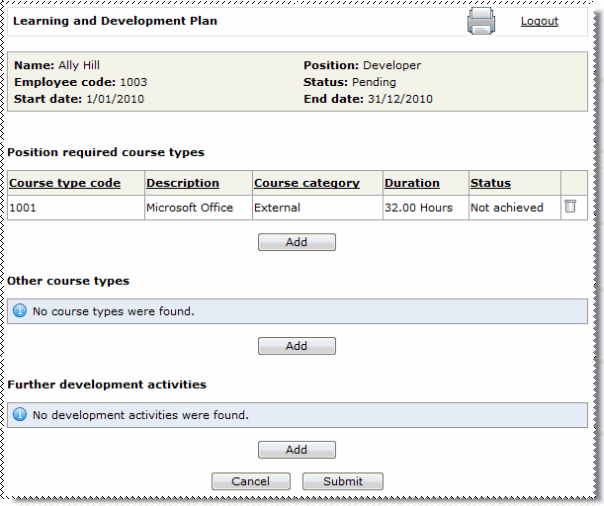
- Review the employee's plan. You can add or delete courses from their plan.
- Click Submit.
The following message appears: The Learning and Development plan has now been submitted for approval.
You will receive an email to advise you that you have a Development plan that requires approval.
- In the navigation menu, click Manager Learning & Development | Development Plan Approval.
The View details icon  now appears beside the employee's plan.
- Click the View details icon to open the employee's plan.
The Approve and Decline buttons now appear at the bottom of the page (see Approve or Decline Development Plan).
|

|

|
Topic: 28191



