

|
|
|
|
|
|
ESS 4.0 Change
The New Contractor module was converted to New Employee.
The following example explains how to add a new employee.
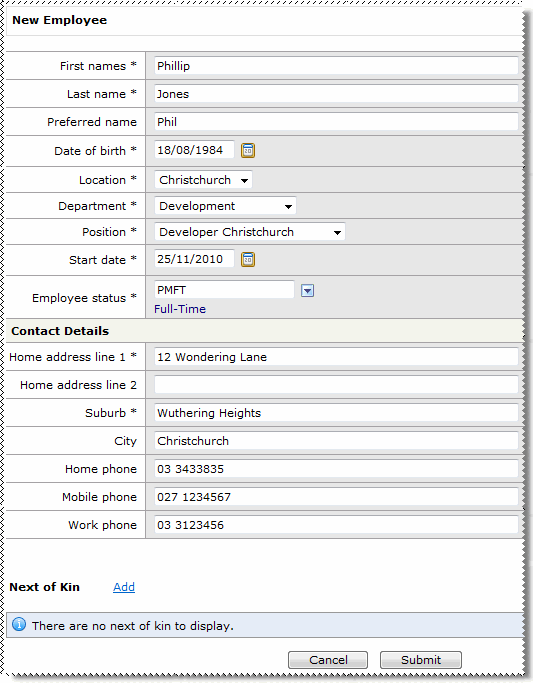
Note: Mandatory fields are marked with an asterisk (*).
Field Name |
Description |
|---|---|
First name * |
New employee's first and last names. |
Last name * |
|
Preferred name |
Enter the name that the employee prefers to be known by. |
Date of birth * |
Select the employee’s date of birth from the calendar. |
Location * |
Select from the list of available locations. Defaults to the current user’s location. |
Department * |
Select from the list of departments available at the above Location. Defaults to the current user’s department. |
Position * |
Select from the list of positions available at the above Location and Department. |
Start date * |
Select the employee’s start date from the calendar. |
Employee status * |
Select the employee's status, such as Full-Time, Part-Time, Casual or Contractor. |
Contact Details |
|
Home address line 1 * |
Enter the employee’s home-address details.
|
Home address line 2 |
|
Suburb * |
|
City |
|
Home phone |
You must enter at least one of these phone numbers. |
Mobile phone |
|
Work phone |
Enter the employee’s work phone number. |
Next of kin |
|
Click the |
|
First names * |
Enter first and last names of the employee’s next-of-kin. |
Last name * |
|
Relationship* |
The relationship of this person to the employee, such as Mother. |
Home phone |
You must enter at least one of these phone numbers for the employee’s next-of-kin. |
Office phone |
|
Mobile phone |
|
The email requests the HR Advisor to prepare a contract for the new contractor. The email includes all of the details from the form except for the emergency contact details. The email is carbon copied (cc) to you.
 |
Topic: 32527


 link to add a Next of kin record.