|
|
|
|
|
|
ESS also displays public holidays and leave requests on timesheets.
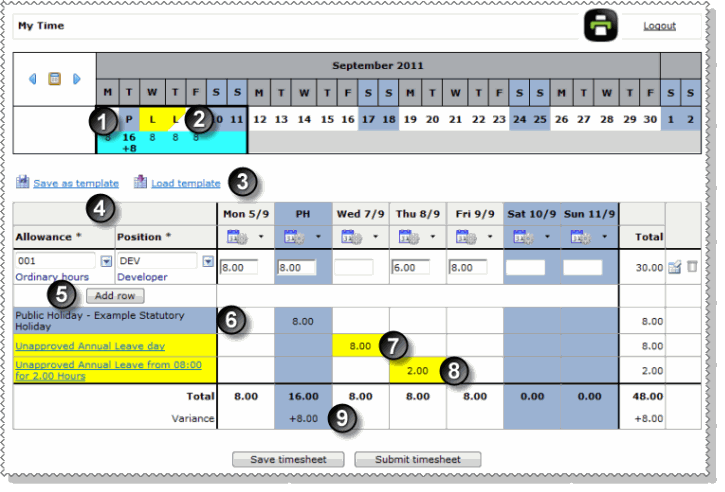
The table below the following image explains the numbered leave features on the timesheet grid.
|
Public holiday on calendar: Public holidays are highlighted blue. |
|
Leave on calendar:
|
|
Leave and timesheets Even if you normally have the security to edit and delete your leave requests, neither you nor your manager can add, edit or delete a leave request if the start date of the request is in a period that has an approved timesheet or an approved timesheet day. |
|
Public holidays header: Public holidays are shown by PH in the day header, and the background of the day is highlighted blue. |
|
Load template If you apply a saved template to a leave day or a public holiday, then any hours in the template are not automatically adjusted for the holidays. You may need to adjust your hours. |
|
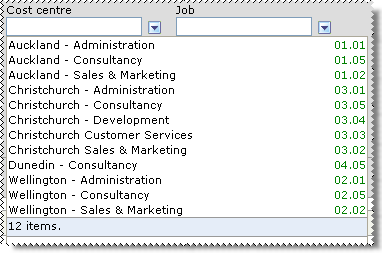
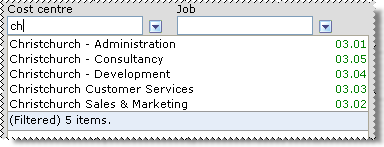
Lookup fields: Your Self-Service Administrator sets the lookup fields that you can see. In the lookup field, clear the contents (if populated) and start typing the name of the required option. Click the required option in the filtered list. Alternatively, click the show options button to select the option from the lookup list (see Press Tab to move to the next field. |
|
Add row: Add a new row to record the hours you worked. If you worked in more than one work area, then you can add a row for each area. |
|
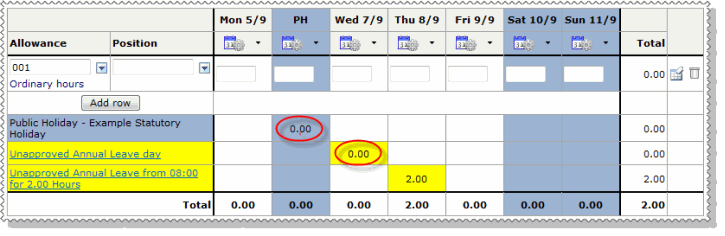
Public holidays row: Public holidays are displayed in a separate row. The description of the holiday is shown in the first column and the background of the description cell and the day are highlighted blue. In this example, the employee was scheduled to work on the public holiday and worked it. |
|
Leave - full day: Full leave is displayed in a separate row. The type and whether the request is approved are displayed in the first column. The details column and day cell are highlighted yellow. |
|
Leave - partial day: Partial leave is displayed in a separate row. The type, start time, duration and whether the request is approved are displayed in the first column. The details column and day cell are highlighted yellow. |
|
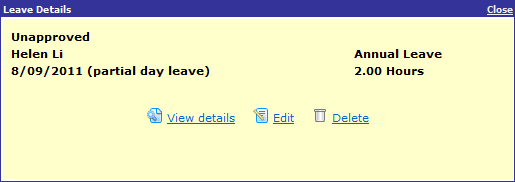
Note: Click the leave request link (first column) to view more information about the request in a popup. The View details link allows you to view your leave request, and you may also be able to edit or delete approved leave requests (see Editing Leave Requests).
|
|
Variance: ESS compares the hours you were expected to work (set up in PayGlobal) against the hours entered in your timesheet. Leave requests and public holidays are also included in the Variance calculation. |
If ESS is set up so you cannot see the variance (explained above), then the public holiday and full leave day values are not populated.
You do not need to enter these values because they will be automatically completed when your pay is processed.
|
|
|
 |
Topic: 37222


 Days that you have submitted a leave request for less than 1 full day are highlighted with a yellow triangle.
 Days that you have submitted a leave request for 1 or more full days are highlighted yellow.

 Lookup Functionality