

|
|
|
|
|
|
When your company is using the Day by day functionality, you can submit your timesheet daily and your manager can approve those timesheets each day.
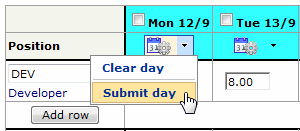
To submit your timesheet for one day:
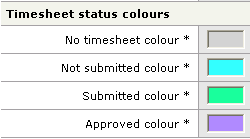
The day header is coloured to show the status of the timesheet for the day. This example uses the following colours.
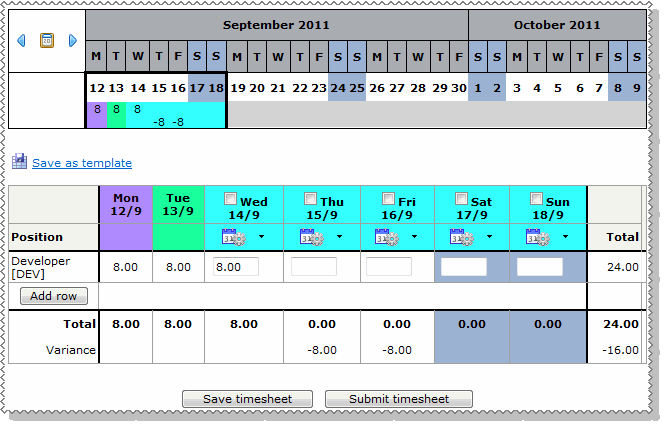
In the timesheet image below:
Submit timesheet
To submit a single day, select Submit day from the single day action lookup. However, the timesheet must still go through the workflow process, so you cannot submit all days individually. To complete submitting the timesheet, you must click the Submit timesheet button when you still have at least one day to submit.
|
|
|
 |
Topic: 37512


