|
|
|
|
|
|
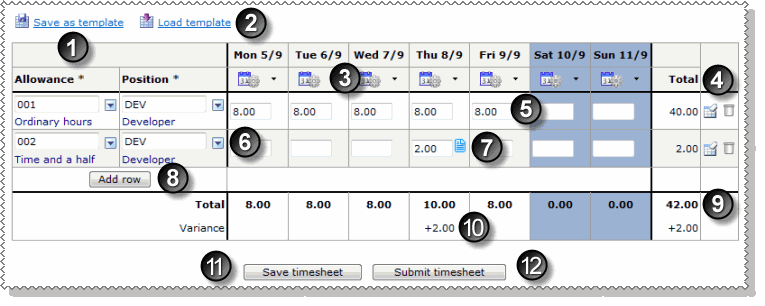
The table below the following image explains the numbered features on the timesheet grid.
|
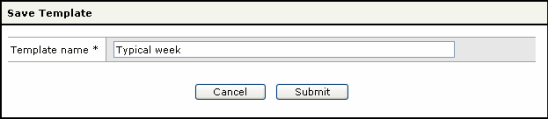
Save as template: If your timesheets will always have similar details, then you can save the details in a template to use again. When you save a template, it is saved with all the information that you have entered. If some of the details will change regularly, then you should clear those fields before you save the template. When you click Save as template, a popup appears. Enter a name in the Template name field, and click Submit.
|
|
Load template: When you have saved a template, the Load template link appears. To apply a template: 1. Click Load template to see the templates that you have saved. 2. Click the Apply this template icon Click the Delete icon to delete templates that you no longer require. Note: If your payroll person changes your timesheet settings, then you may not be able to use your saved templates. When you attempt to apply a redundant template, a message will appear. You should delete redundant templates. |
|
Clear day: |
|
Clear row and Delete row icons:
|
|
Hours worked: Enter the number of hours worked in the selected area for the day. Press Tab or the right-arrow key to move to the next field. |
|
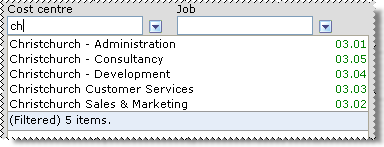
Lookup fields: Your Self-Service Administrator sets the lookup fields that you can see. In the lookup field, clear the contents (if populated) and start typing the name of the required option. Click the required option in the filtered list. Alternatively, click the show options button to select the option from the lookup list (see |
|
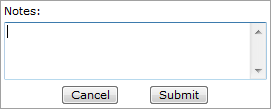
Add note: When you hold your cursor over an hours cell, the note icon Submit: Save the note. Your note can be read by your manager, the Timesheet Admin and your payroll person. The note icon is always visible after you submit a note. Hold the cursor over the icon to see the note as hover text. Cancel: Cancels your changes and closes the popup.
Notes are restricted to a maximum of 225 characters. |
|
Add row: Add a new row to record the hours you worked. If you worked in more than one work area, then you can add a row for each area. |
|
Total hours: Each column displays the total for the day. The Total column displays the total for the week. |
|
Variance: ESS compares the hours you were scheduled to work (set up in PayGlobal) against the hours you have entered in your timesheet. The difference is displayed in the Variance cell for the day. The Total column displays the total variance for the week. |
|
Save timesheet: Saves your changes. If you want to update your timesheet during the week and then submit it at the end of the week, this option saves your changes until the next time you open your timesheet. Blank notes and rows without any hours entered are not saved. |
|
Submit timesheet: See Submit Your Timesheet. |
 |
Topic: 37217



 beside the template that you want to apply.
 Click the action icon and select Clear day to clear all of the times entered for the day.
 Clears all of the times and notes for the day in that row.
 Deletes the whole row.

 Lookup Functionality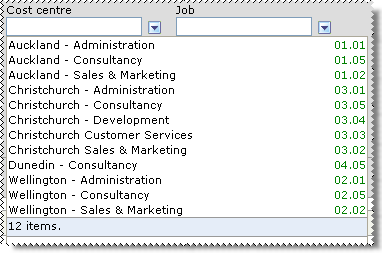

 appears. Click the icon to open the Notes popup.