

|
|
|
|
|
|
Report splitting allows you to automatically create multiple separate reports when you run a single report.
This topic explains how to use report splitting to email payslips to each employee. Each payslip needs to be a separate report that only contains information for one employee. You could run each Australian A4 Designer Payslip report individually, but this would be very time-consuming. Instead, you can use report splitting to run one Australian A4 Designer Payslip report and then split it by employee into separate reports.
You are on the View Report Groups | Reports tab.
The PGPRPRIM904 Setup | Settings tab appears.
Field |
Value |
Details |
|---|---|---|
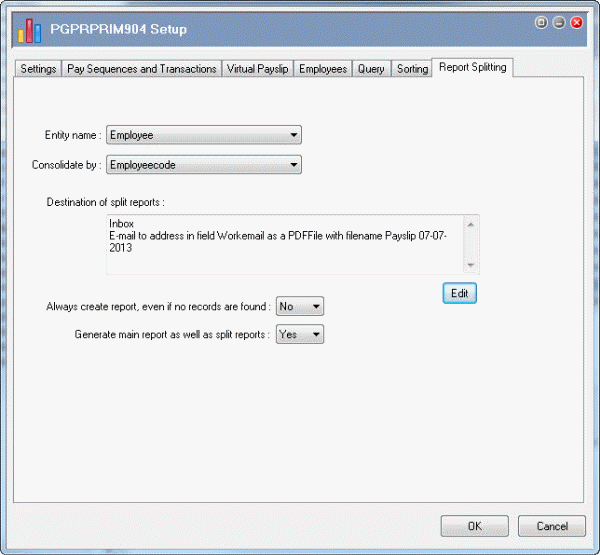
Entity name |
Employee |
Select from drop-down list or enter e. |
Consolidate by |
Employeecode |
Select from drop-down list. |
Important: The Consolidate by value must be unique to each employee. |
||
The Consolidate by options depend on the entity that you selected in the Entity name field. Exolvo will consolidate the reports by the value in this field. In this example you selected Employeecode. Exolvo will generate a separate report for each employee because the Employeecode field is unique. However, if you selected Lastname, then Exolvo would generate a separate report for each group of employees with the same last name. |
||
Always create report... |
No |
Exolvo will not create blank split reports. |
Generate main report... |
Yes |
Enabled when Entity name is not "Don't split this report". Exolvo will create the main report as well as the split reports. |
Now you need to edit the Destination of split reports field.
The Report Destination | Destination options tab appears.
Field |
Value |
Details |
|
|---|---|---|---|
|
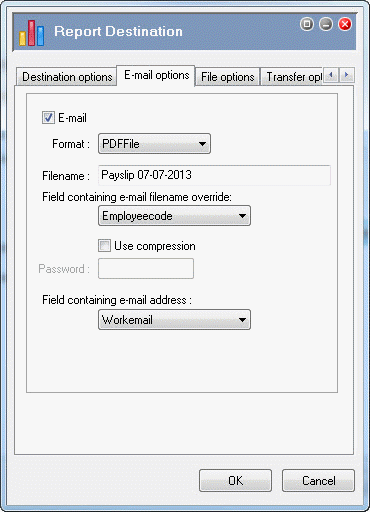
Click the E-mail checkbox to activate these fields. |
||
Format |
PDFFile |
Email the payslip as a PDF. |
|
Filename |
Payslip 07-07-2013 |
Enter a filename that identifies the report to employees when they receive it in their Inbox. In this example, "Payslip" and the pay period end date. |
|
Note: You cannot use forward slashes (/) in the filename because they do not pass email validation. |
|||
Field containing e-mail filename override |
Employeecode |
The split report descriptions will be a combination of the report description: Australian A4 Designer Payslip, and the Field containing e-mail filename override. |
|
Note: The E-mail options tab displays the Field containing e-mail filename override and Field containing e-mail address fields only when you split reports. |
|||
Use compression |
|
Click to clear the Use compression checkbox |
|
Note: If you select this checkbox, Exolvo will generate the report as a zip file. You can also specify a password that the recipient must use to open the zipped report file. |
|||
Field containing |
Select the field (Email or Workemail) that contains the correct e-mail address destination for this report |
||
Note: You can specify employee email addresses in several fields in the employee record. Ensure that all employees have an email address in the field that you select. Exolvo will not generate payslips to your Outbox for employees who do not have email addresses in the specified field. |
|||
The Destination of split reports field now contains the destination details. Exolvo will send:
|
|
|
 |
Topic: 16591


