

|
|
|
|
|
|
The Allowances tab allows you to personalise employer contributions. When a superannuation payroll rule generates an Employee Super Funds allowance in Transaction View, it uses the Allowances tab field values in the current Employee Super Fund to determine the transaction rate. However, payroll rules cannot generate transactions for an allowance if the relevant Employee Super Funds | Allowances tab field is empty or no corresponding allowance code is specified in the associated Superannuation Fund | Allowances tab (see below).
The Allowances tab contains the following column fields:
Column Field |
Details |
|---|---|
Contribute under minimum? |
Yes/No field that indicates whether employer contributions are made if the employee’s salary or wages earnings are below the monthly minimum earnings amount. See Super Settings. |
Important: Salary Sacrifice and Salary Sacrifice RESC fields always have Contribute under minimum? = "Yes" because they are always paid. You cannot edit these labels. |
|
Influence? |
Yes/No field that indicates whether the employee was able to influence employer contributions paid when the employee’s salary or wages are below the monthly minimum earnings amount or Ordinary Time Earnings are above the maximum quarterly earnings threshold. Contributions that the employee has influenced are reported as RESC. |
Important: Salary Sacrifice, Employer RESC and Salary Sacrifice RESC fields always have Influence? = "Yes". You cannot edit these labels. |
|
Contribute over maximum? |
Yes/No field that indicates whether employer contributions are made if the employee’s Ordinary Time Earnings are above the maximum quarterly earnings threshold. See Super Settings. |
Important: Salary Sacrifice and Salary Sacrifice RESC fields always have Contribute over maximum? = "Yes" because they are always paid. You cannot edit these labels. |
|
Important: Exolvo bases minimum and maximum threshold checks on the current Superannuation PTD so you should not change Employee Super Fund details part-way through a Superannuation PTD. If these details change, then you should create a new Employee Super Fund record with the same Start date as the pay period associated with the next Superannuation PTD. If you change these details part-way through a Superannuation PTD, then you would have to add an adjustment transaction to correct the employee's values.
Allison was not able to influence employer contributions so her company makes the minimum contribution:
The company will not contribute if Allison's earnings are:
Enter the following data:
Field |
Data |
Details |
|---|---|---|
SG/Award |
||
Employer (%) |
9.50000 |
Value of the non-RESC portion of the employer’s percentage contribution. The company will contribute 9.5% of Allison's Ordinary Time Earnings to the CBUS superannuation fund. Exolvo copied this value from the Superannuation Fund record when you opted to copy across defaults. |
Important: This Employer (%) value overrides the Superannuation Fund | Allowances tab | Employer (%) value. If the Employer (%) value in the Employee Super Fund is zero or blank, then the payroll rule will not generate any employer allowance transactions. |
||
Contribute under minimum? |
No |
Enabled when Employer (%) is greater than 0.000000. |
Influence? |
No |
Enabled when Contribute under minimum? is "Yes". |
Contribute over maximum? |
No |
Enabled when Employer (%) is greater than 0.000000. |
Influence? |
No |
Enabled when Contribute over maximum? is "Yes". |
Employer ($) |
0.00 |
Value of the non-RESC portion of the employer’s fixed contribution. Use this field in reports or payroll rules to determine whether the employer is contributing the required amount to the employee’s superannuation. |
Note: An employer could agree to pay $10,000 in superannuation as part of the employment agreement. Employees can belong to many superannuation funds, so the employer could contribute $2,000 to two funds and $6,000 to a third fund. |
||
Contribute under minimum? |
No |
Enabled when Employer ($) is greater than 0.00. |
Influence? |
No |
Enabled when Contribute under minimum? is "Yes". |
Contribute over maximum? |
No |
Enabled when Employer ($) is greater than 0.00. |
Influence? |
No |
Enabled when Contribute over maximum? is "Yes". |
Salary Sacrifice (%) |
Value of the non-RESC portion of the Salary Sacrifice percentage. |
|
Salary Sacrifice ($) |
Value of the non-RESC portion of the Salary Sacrifice fixed value. |
|
Note: Salary sacrifice is usually set up as a deduction so these fields are not used. In this example, these fields are disabled because the CBUS Superannuation Fund | Allowances tab does not contain allowance codes for these fields (see below). |
||
Additional Employer |
||
Employer RESC (%) |
0.000000 |
Value of the RESC portion of the employer’s percentage contribution. |
Contribute under minimum? |
No |
Enabled when Employer RESC (%) is greater than 0.000000. |
Contribute over maximum? |
No |
Enabled when Employer RESC (%) is greater than 0.000000. |
Employer RESC ($) |
0.00 |
Value of the RESC portion of the employer’s fixed contribution. |
Contribute under minimum? |
No |
Enabled when Employer RESC ($) is greater than 0.00. |
Contribute over maximum? |
No |
Enabled when Employer RESC ($) is greater than 0.00. |
Salary Sacrifice RESC |
||
Salary Sacrifice RESC (%) |
Value of the RESC portion of the Salary Sacrifice percentage value. |
|
Salary Sacrifice RESC ($) |
Value of the RESC portion of the Salary Sacrifice fixed value. |
|
Note: Salary sacrifice is usually set up as a deduction so these fields are not used. In this example, these fields are disabled because the CBUS Superannuation Fund | Allowances tab does not contain allowance codes for these fields (see below). |
||
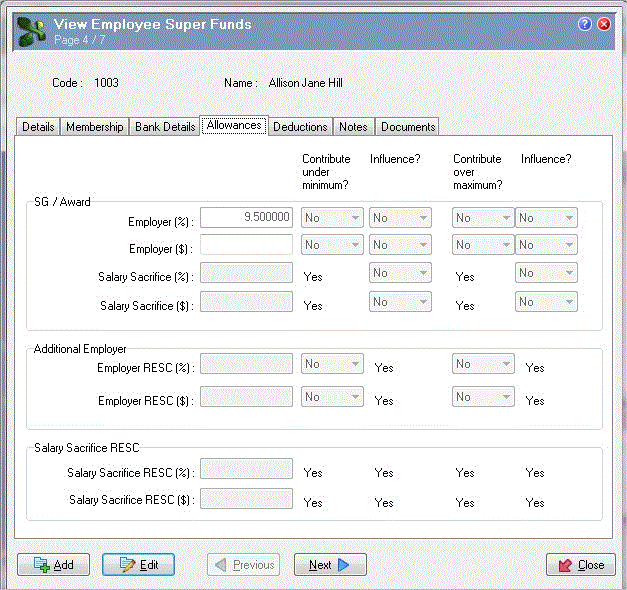
Employee Super Funds and Superannuation Fund Allowance values
The following fields are disabled if the associated Superannuation Fund record does not contain a corresponding code because Exolvo cannot create transactions for such field values, see Superannuation Fund | Allowances tab:
If you have Employee Super Funds records with values in disabled fields, then you cannot edit them directly. However, when you save such Employee Super Funds records, a message asks whether you want to remove the disabled field value. For example:

If you select "Yes", then Exolvo removes the value from the disabled field.
If you select "No", then the value remains in the disabled field. However, Exolvo will not be able to create transactions for this field value until you add the corresponding allowance code in the associated Superannuation Fund record.
|
|
|
 |
Topic: 14875


