

|
|
|
|
|
|
View all employees
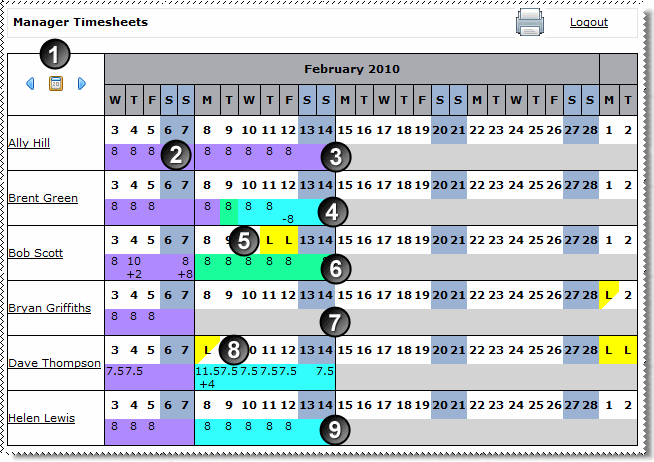
The table below the following image explains the numbered features on the timesheet grid.
|
Click the blue arrows to move backwards or forwards through the calendar 7 days at a time. Alternatively, click the calendar icon to select the required date in the calendar. |
|
Historical timesheets: All of the timesheets for this week have been approved and finalised. When timesheets have been finalised, you can no longer recall them. You will always be able to view historical timesheets, but you cannot edit them. |
|
Approved timesheet: In this example, approved timesheets are highlighted purple. |
|
Day by day: When your company is using the Day by day functionality, employees can submit timebands one day at a time and you can approve those individual days. This example shows a week with 1 approved day, 1 submitted day, and 3 not-submitted days. |
|
1 or more full days leave: Leave for 1 or more full days is highlighted yellow and displays an "L". Hold your cursor over a leave day to view the details in hover text. Public holidays are highlighted blue and display a "P". Hold your cursor over a public holiday to view the details in hover text. |
|
Submitted timesheet: In this example, submitted timesheets are highlighted green. |
|
No timesheet: Your Timesheet Admin has not generated a timesheet for this employee for this period. |
|
Less than 1 full day leave: Leave for less than 1 full day is highlighted with a yellow triangle and displays an "L". Hold your cursor over a leave day to view the details in hover text. |
|
Not submitted timesheet: In this example, timesheets that have not been submitted are highlighted aqua. |
View one employee at a time
Click an employee's name to view timesheets for that employee only.
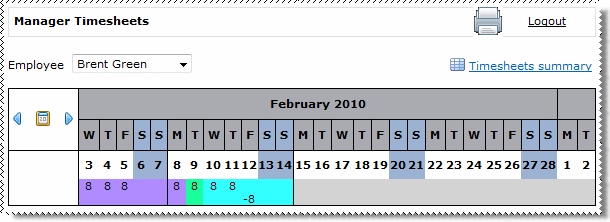
To move to another employee, select their name in the combo box or click Timesheets summary to see all employees.
|
|
|
 |
Topic: 37043


