|
|
|
|
|
|
The Team Calendar tab allows you to view leave information for all employees who report to you.
Use this calendar to view all of the leave that employees requested during the selected year (including approved and unapproved leave, paid and unpaid leave).
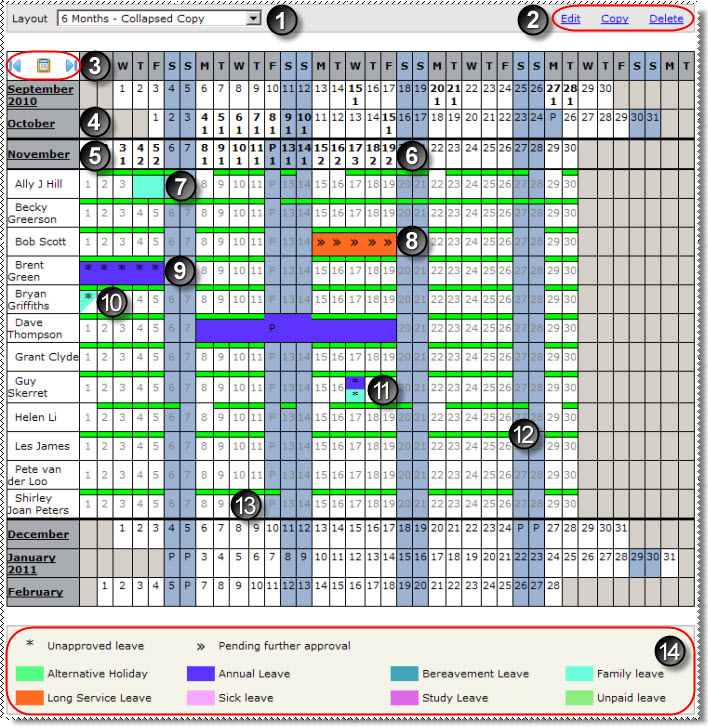
The table below the following image explains the numbered features on the team calendar.
Note: You can also see your own leave on the leave calendar so you can co-ordinate your leave with your team's leave.
|
Select from the company layouts or your own customised layouts. When you select a layout, that layout is active (even if you log out) until you change it. |
|
You can make a copy of the current layout so you can customise and save it. When you select a customised layout, the Edit and Delete links appear. |
|
Click the backwards and forwards arrows to move the calendar backwards or forwards the number of months currently displayed.
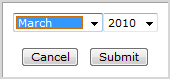
Click the calendar button to select the month that the calendar will start from. For example, if you are viewing a 12 month layout and you select March 2010, then the calendar displays March 2010 to February 2011. |
|
Collapsed months display: - the days of the month and the number of employees on leave each day. - public holidays attached to any employee. Click anywhere on the collapsed month to expand the month. |
|
Expanded months display: - the days of the month and the number of employees on leave each day. - public holidays attached to any employee. - a row for each employee assigned to you showing the leave that they have applied for or taken during the month. Click anywhere on the expanded month description to collapse the month. |
|
The number of employees who have applied for leave each day is shown by the bold number below the date on the calendar. This value includes approved and unapproved leave. |
|
When leave is approved, the * icon is removed from each day of approved leave. You can click the approved leave day to view the details in a popup. |
|
The » icon indicates that you have approved the request, but a further manager is still required to approve it. You can click the unapproved leave day to view the details in a popup. |
|
The * icon is displayed on each day of unapproved leave. You can click the unapproved leave day to view the details in a popup. |
|
A leave request for Less than 1 full day displays a triangle. |
|
A day that has two or more partial leave requests shows a band for each request (band displays the leave reason colour). |
|
The days that the employee is expected to work show the green bar (based on the employee's leave request settings) unless the layout is set to Show work schedule? = No. |
|
Public holidays attached to any employee are coloured blue and show a “P”. Hover text shows the public holiday description. |
|
The legend shows which colour is assigned to each leave reason. However, the layout can be configured to show certain reasons only. |
 |
Topic: 40823