|
|
|
|
|
|
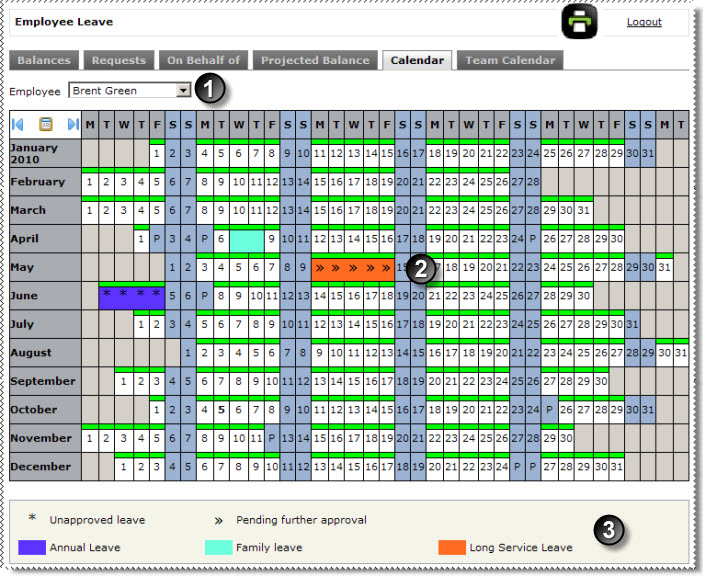
The Calendar tab displays similar information to the Team Calendar. However, the information displayed is only for the employee that you select from the Employee combo list.
Note: The Calendar tab does not use Layouts.
|
Select the required employee in the combo list. |
|
The employee's leave requests are highlighted on the calendar. |
|
The legend shows:
|
You can view the following information for the employee on the Calendar tab.
To view results for a different year, use the navigation section at the top-left of the calendar.
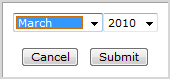
Calendar Navigation Click the backwards and forwards arrows to move the calendar backwards or forwards the number of months currently displayed. Click the calendar button to select the month that the calendar will start from.
For example, if you are viewing a 12 month layout and you select March 2010, then the calendar displays March 2010 to February 2011. |
This view also helps you analyze employee leave. For example, you can easily see if an employee often takes sick leave on Mondays and Fridays.
When you click a day on the Calendar that is highlighted as a leave request, a popup appears. The popup displays more information about the request and links that you can use to manage the request.
The links that are available depend on the state of the leave request (see Popups).
|
|
|
 |
Topic: 41047