

|
|
|
|
|
|
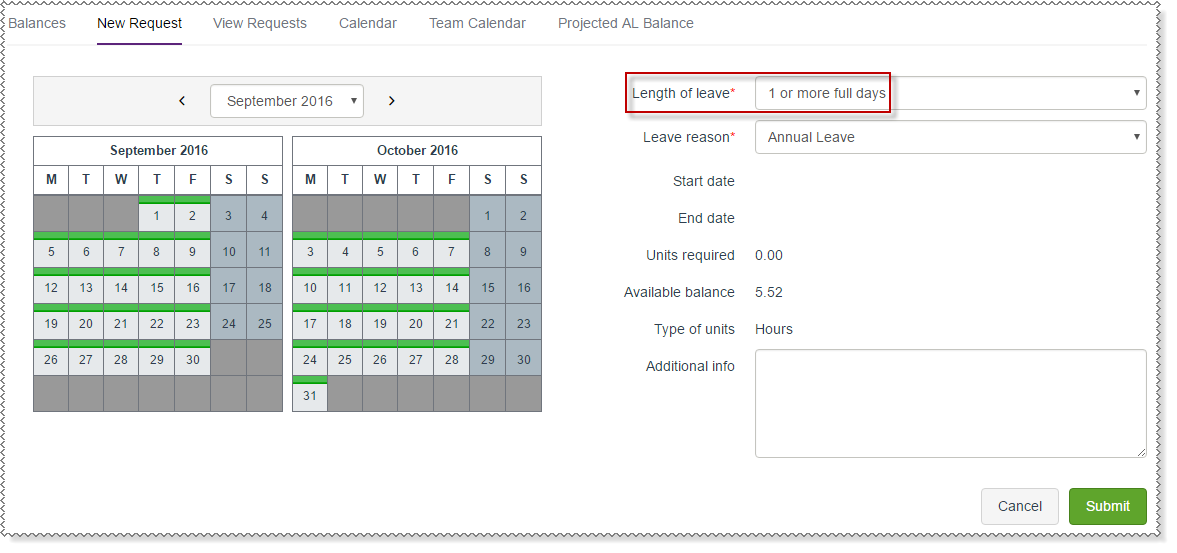
The following process explains how to complete a leave request for 1 or more full days.
The following fields are updated:
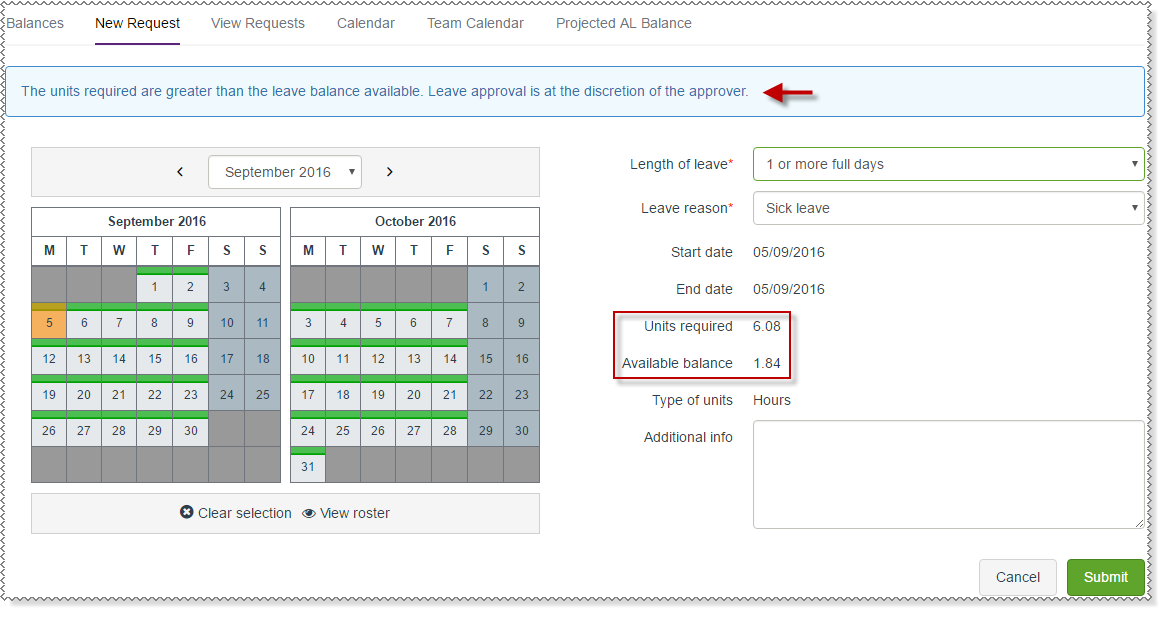
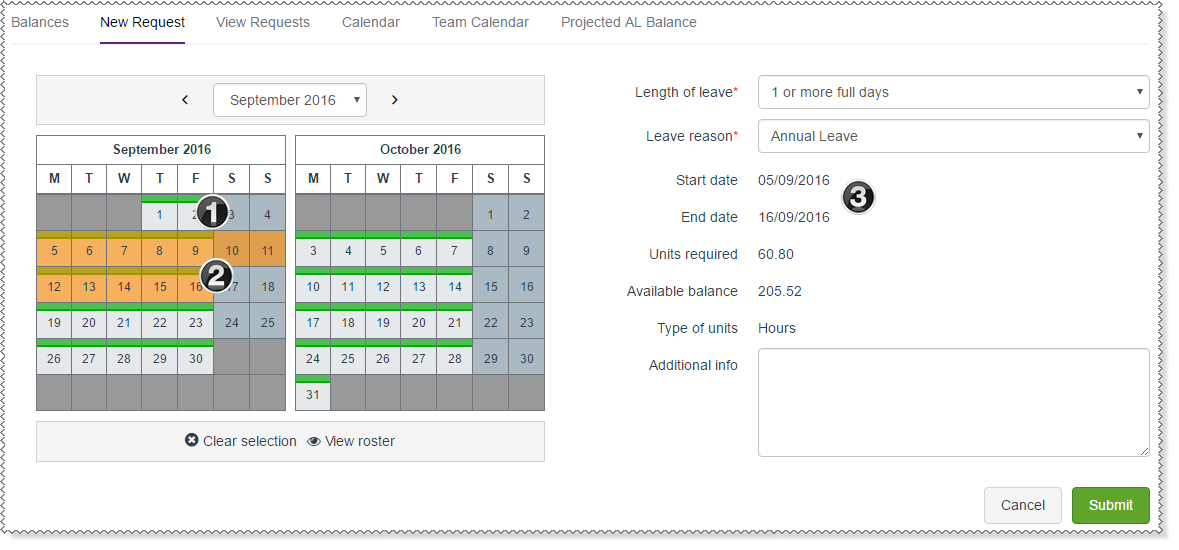
The dates are highlighted in the calendar.
|
The green strips show the days that you are expected to work. If you need to key your units, then every day may show the green strip (public holidays are controlled by PayGlobal settings). Only the units that you enter on the View roster page will be subtracted from your entitlement. |
|
When you click the first and last day of your leave, ESS automatically fills the days in between. |
|
When you select days in the calendar, the Start date, End date and Units required fields are updated. Units required displays "0" if you need to key your hours. |
For more information about the symbols that may be displayed, see  Calendar symbols.
If you are a rostered or profiled employee, then a success message appears and your leave request is submitted to your manager.
If you are a keyed employee, then you are taken to the View roster page so you can enter your hours.
Note: At this point Payroll does not contain any record of your annual leave request. Your manager must approve your leave request before it can be processed by Payroll.
Your manager will approve or decline your leave request and you are notified of their decision by email.
 |
Topic: 40856


