|
|
|
|
|
|
Would you like to watch the "Manager - Employee Timesheets - Timebands Submitted Weekly" video? You must be connected to the Internet. When you view a video, you can press Ctrl and use your mouse scroll wheel to resize the video. You should be able to see the controls at the bottom of the screen, which allow you to pause or rewind the video. |
|
The employee's timesheet may automatically display the start and end times that they are scheduled to work. The employee must edit these times to show their correct work hours and then submit the timesheet each week so you can approve or decline it.
Use the following procedure to approve a timesheet.
The employee's timesheet appears with the days displayed in rows.
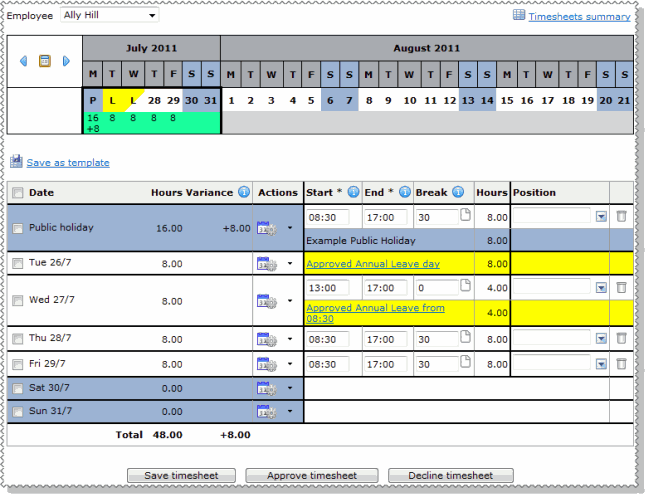
The employee's timesheet displays the following information on separate rows:
In the example above the employee worked the public holiday, so the variance shows "+8" and the total shows "16.00" because the hours worked are treated as a leave credit. However, only the worked hours are exported to PayGlobal.
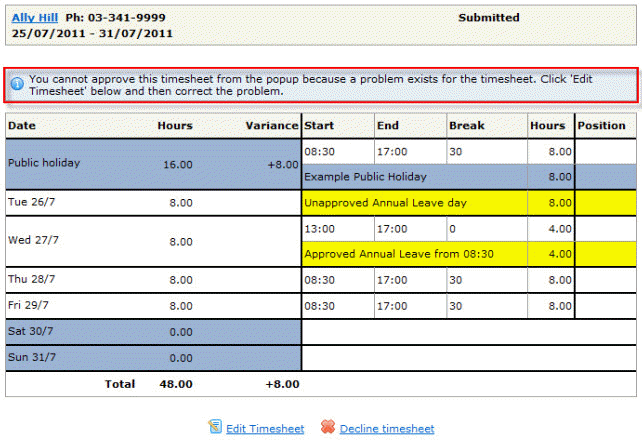
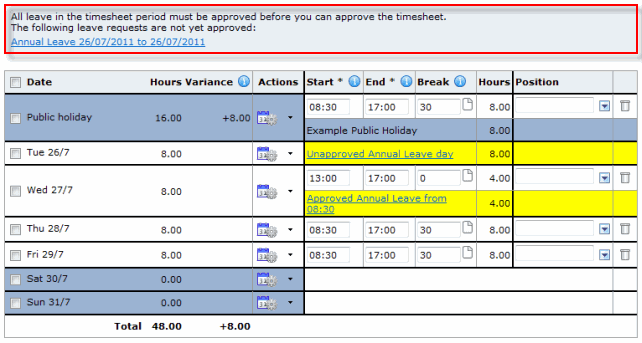
Note: If the timesheet includes unapproved leave requests, then a message appears above the timesheet and you cannot approve the timesheet.
Click Edit timesheet to approve the request from within the timesheet.
When you click the link in the yellow area of a leave request, a popup appears. The popup displays more information about the request and links that you can use to manage the request. The links that are available depend on the state of the leave request (see Leave popups). |
If the timesheet is incorrect, then you can either edit or decline it.
|
|
|
 |
Topic: 41050