

|
|
|
|
|
|
After you approve an employee's Development plan, the employee can book themselves on the course types that they requested in their plan (see Employee - Book me on a course).
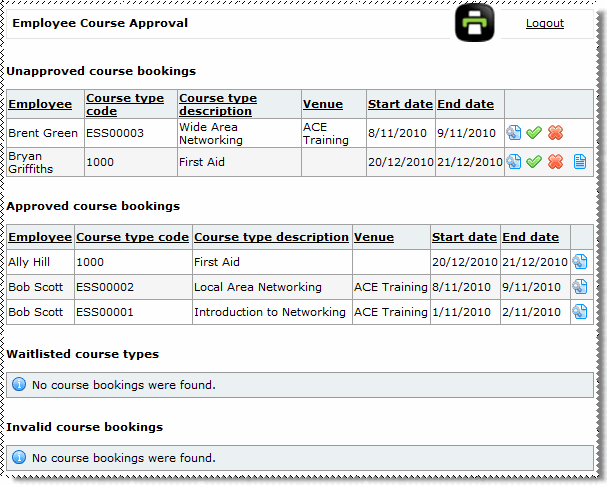
The Employee Course Approval page has the following options:
|
Click the View details icon to open the course details. |
|
Click the Approve icon to approve the course request. |
|
Click the Decline icon to decline the course request. |
|
Visible when the employee has entered information in the Comments field. Click the View Notes icon to view a popup showing information and comments that the employee has entered about attending the course. |
Approve course request
To approve an employee's course request, click the Approve icon  for the relevant course request.
If spaces are available on the course:
If spaces are not available on the course, then the course booking is moved to the Invalid course bookings section.
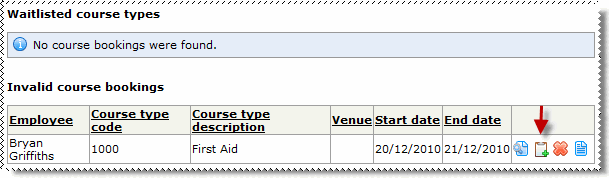
You have the following options:
 to wait list the employee.
The course booking is then moved to the Waitlisted course bookings section and the employee is notified by email that they have been waitlisted.
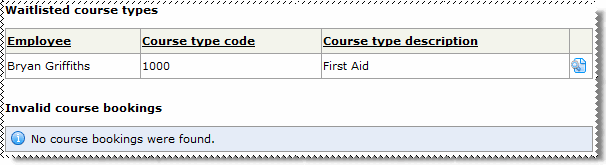
 to decline the course booking.
Decline course request
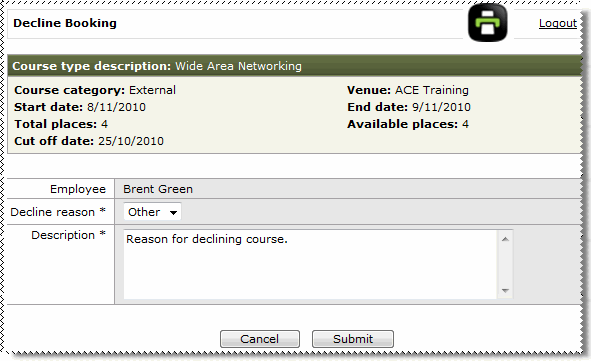
Use the following procedure to decline an employee's course request.
for the relevant course request.The Decline Booking page appears.
If you select "Other", then the Description field appears and you must type your reason for declining the course request in the Description field.
 |
Topic: 33424


