

|
|
|
|
|
|
Important: Your Self-Service Administrator configures the information that you can see, so your timesheet grid may be different to the images below.
Use the following procedure to complete your timesheet.
The My Time page appears.
Periods that are highlighted the "not-submitted" colour (aqua in this example) are ready for you to enter your timesheet.
Note: When timesheets are generated for a period, the period is highlighted the "not-submitted" colour and a Timesheet [date] item is created in your Active Items with Status = "Not submitted".
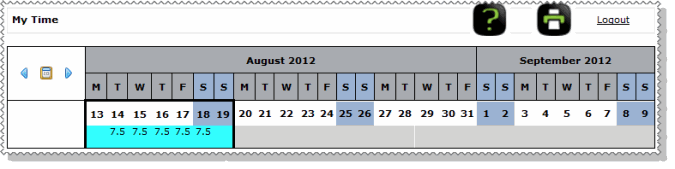
The week that you clicked opens in the timesheet grid.
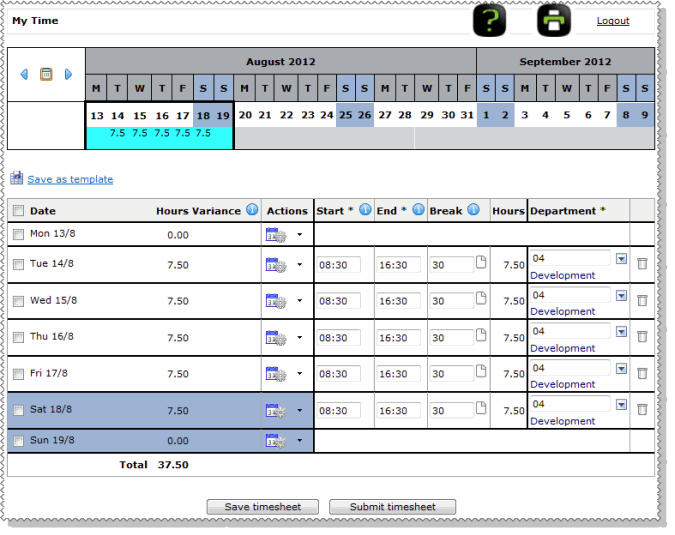
A row appears for each day with lookup fields in the last column.
If you can see the Variance column, then this row shows a comparison between the hours you were scheduled to work (set up in PayGlobal) against the hours you have entered in your timesheet.
Note: If you want to update your timesheet during the week and then submit it at the end of the week, click Save timesheet to save your changes until the next time you open it. Blank notes and rows without any hours entered are not saved.
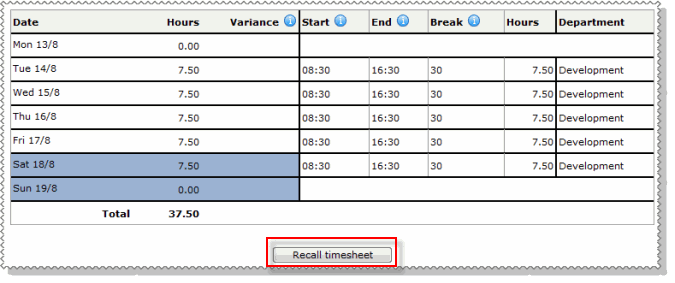
After you submit your timesheet, you may see the Recall timesheet button. Recall timesheet allows you to retrieve a timesheet that you have submitted so you can add additional timebands to it (see Recall timesheet).
Can I submit a blank timesheet?
You can submit a timesheet without any times. For example, if you were on leave for the week or you were a contractor that did not work that week, then click the delete icon at the end of each row to remove the timebands. You cannot submit a timesheet with zero values in the Start and End times.
 |
Topic: 39704


