|
|
|
|
|
|
Would you like to watch the Employee Timesheets Videos? You must be connected to the Internet. When you are viewing a video, you can move your mouse's scroll wheel while pressing Ctrl to resize the video. You should be able to see the controls at the bottom of the screen, which allow you to pause or rewind the video if required. |
|
Note: Use My Leave to enter Leave transactions — not My Time.
You can use My Time to:
My Time is configured to each company’s requirements. Your company decides who can use My Time and which fields they can see. This section is a general overview of My Time and it may show options that are not available to you.
The timesheet procedure that you use may vary depending on how PayGlobal has been set up to handle timesheets for you. Ask your payroll person which timesheet setup you have.
This manual explains the following setups:
Your timesheet captures the total hours that you work in each area for each day. You will submit your timesheet each week and then your manager will approve or decline it.
Same as above except that you can submit your timesheet daily and your manager can approve those timesheets each day.
Your timesheet automatically displays the start and end times that you were scheduled to work. You must edit these times to show your correct work hours and then submit your timesheet each week and your manager will approve or decline it.
Same as above except that you can submit your timesheet daily and your manager can approve those timesheets each day.
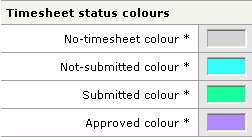
Timesheet status colours
The Self-Service Administrator can configure the colours that show the status of timesheets. This manual uses the following timesheet status colours.
 |
Topic: 39764